$0
OneCommand (macOS Terminal Command)
One command to rule them all
[Available as a free (Lite) version or a paid (Full) version - pictured above]
Latest Versions:
v2.1.1 (Full)
SHA-256: 0e3e775034360cdd2e82c54002b57915dffe57874bab2d751e57a0ef59a337c6
v2.1.1 (Lite)
SHA-256: d2871d0e305e6eb47a72fd63e828f4dbb2308f547e0b267b0580adacef7e5c00
Tested on:
✅ macOS Monterey 12 through Tahoe 26.5
✅ Intel & Apple Silicon
For more screenshots, see here:
Contents
- ℹ️ Introduction
- 🧼 Removing Quarantine
- ▶️ Running Instructions
- ⬆️ Upgrading OneCommand
- 📥 Storing OneCommand
ℹ️
Introduction
OneCommand is a menu-driven command line tool that runs in macOS's Terminal app, giving you access to powerful system features that are hidden, missing, or simply inaccessible through the GUI or App Store apps.
macOS has a wealth of capability locked behind the Terminal - but recalling and managing hundreds of commands isn't practical for most people.
OneCommand solves this by wrapping over 500 commands into a single, navigable interface that feels approachable whether you've never opened Terminal before or use it every day.
It bridges the gap between casual users and power users, replacing the need to remember syntax with an intuitive, keyboard-driven experience - without ever leaving the Terminal.
Here are some of its main features:
Core Functionality
- File Management: Manage/view quarantine, code signatures, extended attributes, permissions, binary architectures, create symlinks
- Privacy & Security: Generate file hashes, audit file types, manage the TCC database, manage the system's hosts file, test a machine's isolation/exposure status
- System Utilities: DNS management, network testing, system information, manage Time Machine snapshots, monitor system activity
- macOS Preferences: Configure various default system settings and behaviors
- Diff Tracker: Track changes to the file system, preference files, websites, compare file differences
- Disk Image Tools: Create/resize disk images and make macOS installers
- Package Management: Batch-install .pkg files
- Settings: Manage all preferences and data saved by OneCommand
- Path Picker: Dedicated global prompt for providing file paths
Architecture
- Interactive menu-driven interface with navigation controls
- Modular function-based design with 24+ utility functions
- Color-coded output using ANSI escape sequences
- Error handling and interruption support
- Support for drag-and-drop or Finder-dialog file operations
- Persistent file-path and preference storage across sessions
Key Design Patterns
- Global navigation system (continue/back/previous/next/stop/path picker/settings/quit)
- Consistent error handling and retry mechanisms
- Automatic Terminal window resizing when displaying large output
- User-friendly prompts and status reporting
🧼
Removing Quarantine
By default, macOS flags & quarantines unsigned files downloaded from the internet, preventing this from being ran simply by double clicking it. (Sorry, we are not yet in the Apple Developer program)
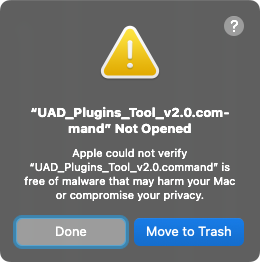
If you wish to run it by double clicking it, you can remove the quarantine attribute as well as give it the necessary permissions.
(See below for instructions on upgrading to a newer version of OneCommand)
1. Copy the command below inside the quotes (including the space at the end of "prep "):
"function prep() {
for file in "$@"; do
sudo xattr -d com.apple.quarantine "$file"
sudo chmod +x "$file"
done
}
prep "
2. Paste the command into terminal and drag and drop the .command file onto the Terminal window, then press Enter.
Example:
function prep() {
for file in "$@"; do
sudo xattr -d com.apple.quarantine "$file"
sudo chmod +x "$file"
done
}
prep /Users/YOURUSERNAME/Downloads/OneCommand.command
3. Type your password and hit Enter again (password will be invisible).
4. The command file should now open as usual when double clicking it.
▶️
Running Instructions
Simply double click the command file. It will then open Terminal and display the Main Menu. Choose a number, press Enter to continue, and follow the on-screen prompts.
Some of the navigation controls include:
- B: Go back a step in any menu.
- Q: Return to the main menu at any point.
- ^C: Interrupt/Stop any output or password prompts or exit the script when at the Main Menu (also used to go back in most cases).
- A/Z: Navigate to the next or previous menu/option (where available).
- S: Quickly jump in and out of Settings while preserving your current location
- P: Quickly jump in and out of Path Picker while preserving your current location
⬆️
Upgrading OneCommand
If you already downloaded OneCommand, you'll no longer need to manually paste the remove quarantine command above when downloading a new version. You can simply use the built-in upgrade option to automate this process by doing the following:
1. Choose the menu item: 🕹️ Command Center.
2. Select option 4: ⬆️ Upgrade OneCommand.
3. Provide your new OneCommand.command file, press Enter, type password, and Enter again.
4. Done. Press Enter to launch the new OneCommand file.
📥
Storage
You can store the 'OneCommand.command' file (or its entire folder), virtually anywhere you'd like.
Here are some common examples:
- Applications folder
- Desktop
- Drag it to the Dock
- iCloud Drive
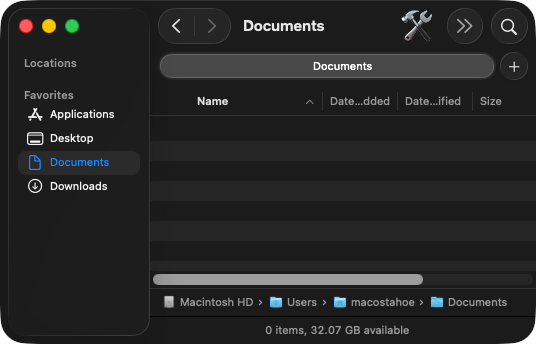
- Pin it directly to Finder (by command + dragging it - notice the 🛠️ below)
If you have any issues, suggestions or feedback, don't hesitate to reach out.
Enjoy!
Say goodbye to average vocals



Questions or want to request a demo ?
Sign up to our newsletter
Join our community and get the latest tips, deals and product updates straight to your inbox. 🔒 We will never send spam or share your information