OneCommand Release Notes
See also: OneCommand (Lite) Release Notes
v2.1.2 - 07/15/2026
- Tested & compatibile in macOS Tahoe 26.5.2
- Added a new 💨 Quick Preset: “Check for broken symlinks” - Scans a directory recursively for broken symlinks and displays any results in a tree-view.
- Changed in 🔒 TCC Utility, while showing TCC permissions, Terminal Auto-Resize now gets set to a width of 95 instead 90.
- Fixed in ⚙️ macOS Preferences: The values to activate/deactivate the fastest mouse setting was swapped.
- Changed in ⚙️ macOS Preferences: Pressing B at “Refresh all results or back to categories?” now takes you back to the categories page instead of refreshing all results.
- Changed in 🛠️ Settings: When changing the preference “Hide incompatible prefs in macOS Preferences”, the message “Note: Must leave macOS Preferences for this to take effect...” will now only be shown if toggled via Quick Settings from macOS Preferences.
v2.1.1 - 04/06/2026
New in OneCommand:
- Added: Now displays a system info banner in Command Center & Settings (e.g., macOS 26.4 | Apple M4 Max Mac Studio)
- Changed: Now using semantic versioning
New in ⚙️ macOS Preferences:
- Added: Now detects laptop vs desktop, Intel vs Apple Silicon, physical device vs virtual machine and macOS version in order to filter preferences.
- Added: Preferences that are depreciated or incompatible with your system will now be greyed out. You can also hide these altogether by going to Settings > Manage Preferences > 'Hide incompatible prefs...'
- Fixed: During the preference action screen, pressing A/Z while caps lock is on now works as expected.
- Fixed: When Terminal horizontal Auto-Resize is disabled, text alignment of option 2 in the Grant Terminal FDA screen is now fixed.
- Changed: Specified ’macOS Ventura & above’ for the Safari preference: Warn before connecting to a website over HTTP
- Changed: Under ‘⌨️ [Keyboard]’, Initial Key Repeat Rate and Delay Until Key Repeat now go beyond System Settings’ fastest setting. (Apple seems to have slowed these down since macOS Sequoia)
- Added: As of Tahoe 26.4, the preference ‘🧹 Clean Up Share Menu Extensions’ can now toggle on/off Open in News and Journal. (This preference now gets set dynamically based on your macOS version, since extension availability varies between OS versions).
- Added: As of Tahoe 26.4, Archive Utility now stores some preferences differently. Two new ‘Move To Trash’ preferences have been added to the categories ‘🗜️ [Archive Utility]’ & ‘🆕 [NEW for macOS Tahoe 26]’. (Previous preferences will remain, but will now be greyed out if on 26.4 or later).
- Changed the category name ‘🔑 [Passwords]’ to ‘🔑 [Passwords & AutoFill]’
- Added new preferences under 🔑 [Passwords & AutoFill]:
- 🚮 Delete Verification Codes After Use (Sonoma 14+)
- 🚫 Disable AutoFill Passwords and Passkeys
- 🚫 Disable AutoFill from iCloud Keychain/Passwords app
- Added new preferences under 🌐 [Safari - AutoFill]:
- 🚫 Disable AutoFill User Names & Passwords (Sequoia 15.7.5+/Tahoe 26.4+)
- 🚫 Disable AutoFill User Names & Passwords (Sequoia 15.7.4 & below/Tahoe 26.3 & below)
(As of Tahoe 26.4 and Sequoia 15.7.5, toggling the username/password AutoFill option in Safari no longer affects AutoFill globally (e.g., via System Settings > … > AutoFill Passwords and Passkeys). (Safari now uses a new key called ‘AutoFillPasswordsInSafari’).
- Performance optimizations
New in 🧼 Isolation Check:
- Added an additional hypervisor check
- Performance optimizations
v2.1 - 03/24/2026
- macOS Tahoe 26.4 support (brings back compact tabs in Safari)
- New in ⚙️ macOS Preferences
• Added preference: ‘🗂️ Safari: Disable compact tab layout (Tahoe 26.4+)’ (under 🆕 NEW for macOS Tahoe 26)
- Fixed saved paths file not getting encrypted on macOS Monterey
v2.0 - 03/20/2026
NEW in 🛠️ OneCommand:
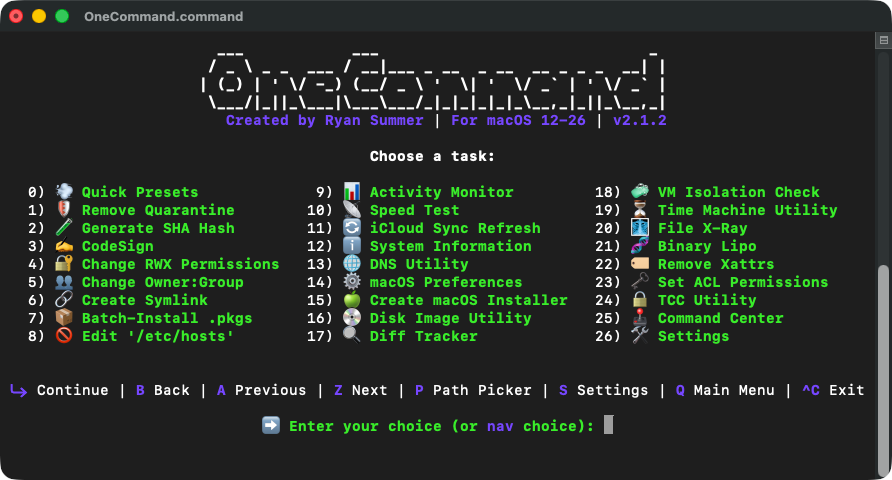
- Added 5 new menu options
• 🔒 TCC Utility - Manage the Transparency, Consent, and Control database (Privacy & Security app permissions)
• 🏷️ Remove Xattrs - View and remove Extended Attributes (xattrs)
• 🗝️ Set ACL Permissions - View and set Access Control List permissions
• 🕹️ Command Center - replaces OneCommand Info and includes some new options (listed below)
• 🛠️ Settings - a new central hub to manage all new preferences and data saved by OneCommand
- Added a new Quick Stats preset in 💨 Quick Presets
• Quick Stats - Displays detailed info about a given file, directory or bundle - (essentially a combination of 9 functions in one!) - works for top-level files/directories/bundles only - no recursive scanning
- Added brand new features such as: Saved Paths, Preferences, Path Picker, Sudo Keep-Alive, Display Options, Quick Settings, Quick Picker and updates to all functions.
- Added two brand new navigation controls/keyboard shortcuts:
• S: Quickly jump in and out of Settings (more about this below)
• P: Quickly jump in and out Path Picker.
- Added the ability to keep sudo privileges active during a session and/or set a preferences to always prompt for your password at startup.
- Added the ability to set and save 29 persistent preferences
- Added the ability to save and remember file paths for future use
- In addition to displaying previous steps/submenus (under most headers) - for example: ‘↩ Main Menu’, next steps/submenus will now be shown where applicable - for example: ‘Summary ↪’.
- Changed ‘^C Stop’ to ‘^C Exit’ in the main menu’s nav bar.
- Added the ability to pass command-line arguments to OneCommand. - Skip the main menu and jump directly to a task. - Run ‘./OneCommand.command -h’ to see available options.
- You can now use A/Z controls at more sub-menu depths
- Updated UI: new headers, nav bar, main menu layout and more - continued below!
Introducing Path Picker: A new prompt for providing file paths. Options include:
• 📂 Reveal Finder (for drag & drop)
• 📄 Choose file(s) (via Finder dialog)
• 📁 Choose folder (via Finder dialog)
(Or use the existing drag & drop functionality in the same window)
- Providing an invalid path along with valid ones will now also ask if you want to continue with valid paths.
Introducing Saved Paths:
- Providing paths via Path Picker will now prompt if you want to save them for future use. Saved Paths will appear as an additional choice among the Path Picker options. For example:
💾 Use saved paths
🗑️ Clear saved paths
- Saved Paths get stored (and encrypted) in a file ‘~/.OneCommand/saved_paths.enc’, and then recalled/decrypted on each OneCommand launch. This means that the file is unreadable on any other machine or by any other user, unless someone has administrator/root access to your machine. (This is just for added privacy. Saved Path Encryption can be toggled off in Settings if needed).
- Introducing 🕹️ Command Center: (this replaces the menu option ‘ℹ️ OneCommand Info’ and includes:
• 1) ⚙️ Settings
- The new central hub to control all data and preferences saved by OneCommand. This menu allows you to manage all: Saved Paths, ‘Don’t Ask Again’ dialogs, Webpage/Preference Tracker snapshots, enable or disable Terminal window Auto-Resizing, control text effects, disable Saved Paths encryption or enable/disable Sudo Keep-Alive at startup.
- You can also access Settings at any time or in any menu by using the new nav shortcut: ‘S’. This will enter into a special Quick Settings mode, saving your current place in OneCommand. To exit Quick Settings, press Q to jump back to where you left off.
• 2) Path Picker
- A standalone version of Path Picker if you wish to hide a menu’s Path Picker via Settings.
- You can also access Path Picker at any time or in any menu by using the new nav shortcut: ‘P’. This will enter into a special Quick Picker mode, saving your current place in OneCommand. To exit Quick Picker, press Q to jump back to where you left off.
• 3) 📚 Resources
- includes all previous options that contained 🔗links
• 4) ⬆️ Upgrade OneCommand
- implemented safeguards if accidentally choosing a file that is not a ‘OneCommand.command’ file
• 5) 🔐 Enable Sudo Keep-Alive (can also be found in Settings)
- Instead of typing your password for every sudo command (or after sudo privileges automatically time-out after 5 mins), you can now keep sudo privileges alive for the entire script’s lifetime. You can either toggle it on or off during each session, or set a preference to always ask for your password upfront once OneCommand launches. Sudo Keep-Alive will end once exiting the script, toggling it off during a session or even if Terminal crashes.
• 5) 📋 Show Command-Line Options
- Lists all the available options/arguments that can be passed to OneCommand.
- Introducing Display Options: A new prompt to choose scan depths for new operations that scan through directories.(Displays directory contents and info/results within a tree-view). Options include:
• Top-Level
• Top-Level + One-Level Deep
• Recursive
• Don't ask again (where applicable)
• Skip (where applicable)
(A/Z controls also work after choosing a Display/Scan Depth option - allowing to cycle between the three different views. (note that terminal window resizing is disabled when cycling, in order to prevent flickering and unnecessary overhead)
NEW in 💨 Quick Presets:
- Added 5 new quick presets including Quick Stats and 4 new chmod commands
- Implemented the option to set recursive choices for all applicable commands
- Once entering the Quick Presets menu, it now displays all of the presets first before asking for a path. (This means that each preset will now ask for a path. However, if a path is already saved, you can disable Path Picker in presets 0-11 via Settings if needed).
- for all codesigning presets:
• If codesigning fails, extended attributes (xattrs) are automatically cleared from the file and codesigning is attempted a second time before reporting a failure
• Now displays detailed errors if codesigning fails
• added a check if the codesign tool is installed. If not, a prompt is shown to install XCode Command Line Tools.
NEW in🛡️ Remove Quarantine
- Implemented Display Options
- if a file or directory contains no quarantine attribute to remove, a ‘skipped’ message will be displayed, rather than a failure message.
NEW in 🧪 Generate SHA Hash:
- Renamed ‘🧪 Generate SHA256 Hash’ to ‘🧪 Generate SHA Hash’
- You can now choose between SHA-256, SHA-512 and SHA-1 algorithms
- Implemented Display Options
NEW in ✍️ Codesign
- Implemented Display Options
- Implemented more robust signature detection methods to display more accurate/useful signature details.
- If codesigning fails, extended attributes (xattrs) are automatically cleared from the provided file path(s) and codesigning is attempted a second time before reporting a failure
- Now displays detailed errors if codesigning fails
- added a check if the codesign tool is installed, if not, a prompt is shown to install XCode Command Line Tools.
NEW in 🔐 Change RWX Permissions
- Implemented Display Options
- when choosing a custom numeric chmod value, you can now type it right then and there instead of first choosing an option to type a custom value.
NEW in 👥 Change Owner:Group
- Implemented Display Options
Fixed in 🔄 iCloud Sync Refresh
- After a refresh, you’re now prompted to head back to main menu instead of another refresh
NEW in ⚙️ macOS Preferences
- Added new preference: ‘🧹 Clean Up Share Menu Extensions’ (under 🆕 NEW for macOS Tahoe 26 & ⚙️ System & UI)
- Fixed in ⌨️ Keyboard Shortcuts:
- 📦 Suspicious Package: “Sets ⌥⌘ + '[' or ']' for Previous/Next Tab in Package” did not work and was essentially a duplicate of Show Previous/Next Tab.
- New in ⌨️ Keyboard
- 🌐 Use F1, F2, etc. keys as standard function keys:
- In 🆕 NEW for macOS Tahoe 26, the following preferences were added back (previously removed):
• 📋 Menu Bar: Never Hide Menu Bar In Fullscreen (Tahoe 26+)
• 📋 Menu Bar: Show Menu Bar Background (Tahoe 26+)
• 🔍 Spotlight: Enable Clipboard Manager/Search (Tahoe 26+)
• 🔍 Spotlight: Increase Clipboard history from 8hrs to 7 days (Tahoe 26.1+)
- removed incorrect Sonoma requirements from ‘💬 Disable Automatic Sharing’
- removed incorrect Sonoma requirements from ‘💾 Show APFS Snapshots in Disk Utility’
- A/Z navigation is now supported when at the step to give Terminal full disk access
- Moved all skip controls to the main navigation bar, saving screen real estate
- In the cached step for “Show All Preferences”, the ‘🔒 [Cached]’ labels now blink. (You can pause the blinking by clicking and holding Terminal’s scrollbar, or disable the effect globally via Settings)
- Fixed a typo in a ‘defaults read’ command when getting the inactive value for “com.apple.TextEdit NSNavPanelExpandedStateForSaveMode2” for 📝 [TextEdit] > 📂 Expand Save Panel by Default (2 of 3)’. This would sometimes show Inactive/Not Set instead of Inactive)
- Fixed a typo in the ‘defaults write’ command to activate: ‘🚫 Disable Send Read Receipts’. The domain typo: ‘ccom.apple.imagent’ created this dormant file in ‘~Library/Preferences/ccom.apple.imagent.plist’. Please delete if you have this file)
- The preference ‘Use bright colors for bold text’ under 👾 [Terminal] was previously being set/detected incorrectly, setting a dormant key/value in the com.apple.Terminal.plist. To clean this up, see if this command returns a value: ‘defaults read com.apple.Terminal UseBrightBold’. If so, you can safely remove it with the following command: ‘defaults delete com.apple.Terminal UseBrightBold’. Additionally, UseBrightBold cannot be reliably toggled on/activated (seemingly due to a cfprefs bug). Viewing the state/value and Deactivate/Reset to Default does work however. (Choosing to Activate this will simply trigger an error message).
- Fixed an incorrect error message getting displayed when successfully resetting the Remote Management menu bar icon
Fixed in 🍏 Create macOS Installer
- Failure to download a full installer would always display success instead of an error message.
NEW in 💿 Disk Image Utility
- Brand new ASCII-art header and home page display
- support for Saved Paths via Path Picker when creating images from files.
- New layout/positioning for the Pending/Current Disk Image display. (long file names would sometimes clip the menu header)
- Changed all ‘Grow Size’ references to ‘Capacity’ (since a sparse image’s capacity can also be reduced/resized down)
- Differentiated any ‘size’ references to either ‘File Size’ or ‘Capacity’.
- Fixed: Creating disk images from source files smaller than 1MB, would sometimes fail to seed any files. (There is now a minimum required capacity of 2MBs)
- Added support for setting disk image capacity in MBs instead of just GBs
- Added 28 new capacity presets including options in MBs & TBs, as well as more options in GBs
- When typing a custom capacity, you can now specify MBs or TBs instead of just GBs.
- When typing a custom capacity (“1g” for example), other typed variations will now be accepted; i.e. 1gbs, 1GBs, 1 GB - same applies to MBs/TBs. Note that if no GB/MB/TB is specified (numbers only), MBs will be used as a fallback by default.
- (Creation path only) Now shows an estimated file size within the Pending Disk Image display (the file size for a disk image is different than the maximum capacity and will be the same as what Finder will show when using Get Info on a .sparseimage file)
- (Creation path only) if creating a disk image from source files and choosing a custom capacity, choosing less than the required amount needed will trigger an error and prompt for a larger capacity.
- (Creation path only) At the “Choose Save Location” step:
• Added more save location options (other than the Desktop) including Downloads, Documents + added the new Path Picker options)
• Added a new “Fix Duplicate Name” step if a .sparseimage file already exists with the chosen image name in the chosen save location.
- Encryption step no longer requires typing a y or n. This is now handled with options ‘1) Yes’ or ‘2) No’ - for sake of speed.
- When re-typing/confirming a password, you can now go back a step to re-type the initial password.
- (Resize path only) In the resize/compact summary, results now only show Old File Size vs New File Size + Old Capacity vs New Capacity. All other previous results can be found in the new headers and ‘Current Disk Image Info’ display
- (Resize path only) Disk images that are encrypted will trigger a prompt to unlock it in order to display the before/after capacity results. This can be skipped if desired.
- various other optimizations, improvements and UX enhancements
NEW in 🔍 Diff Tracker:
- Renamed ‘🔍 macOS Diff Tracker’ to ‘🔍 Diff Tracker’
- Added a new option: Webpage Tracker (Beta) - View and track webpage changes (stores snapshots locally in ‘$HOME/.OneCommand/Diff_Tracker/Webpage_Tracker’)
- A/Z navigation can now be used to cycle between the 4 Diff Tracker options
- Fixed macOS Monterey being incompatible with the ‘diff’ command’s ‘--color=always’ argument (introduced in OneCommand v1.5. This suppressed output in Preference Tracker & File Diff Tracker).
- New In Preference Tracker:
• Filtered some Apple domains that were incorrectly getting displayed under third-party domains.
• Filtered out ‘NSGlobalDomain’ as this is just a duplicate/alias name for the .GlobalPreferences.plist
• In rare cases, the ‘$HOME/preference_tracking’ folder would sometimes only get partially removed after cleaning up, leaving the ‘current_session’ folder intact and require running clean up again. Removal is now doubled checked to ensure complete removal.
• Changed the location of the ‘$HOME/preference_tracking’ folder to ‘$HOME/.OneCommand/Diff_Tracker/Preference_Tracker’ (the old preference_tracking folder will get relocated automatically if it exists).
Fixed in ⏳ Time Machine Utility
- The command to delete snapshots was commented out, displaying success when nothing happened.
NEW in 🩻 File X-Ray
- Parent paths are now sorted/displayed alphabetically, instead of just sibling directories/files.
- Added the ‘.localized’ file to the ignore list (along with .DS_Store and Icon? files)
- After a scan, you can now refresh it by pressing enter, or press B to go back to file upload.
- Fixed: Paths that contained a left bracket ‘[’ in the pathname would cause some tree brackets to appear too spaced-out and prevent operations from functioning correctly.
- Fixed sibling detection/output for broken symlinks
Fixed in 🧬 Binary Lipo
- Fixed: Paths that contained a left bracket ‘[’ in the pathname would cause some tree brackets to appear too spaced-out and prevent operations from functioning correctly.
- now properly displays a message when no executables are found
v1.5 - 12/29/2025
New in🛠️ OneCommand:
- New A/Z navigation controls: You can now cycle through all 22 menu items by choosing ‘a’ for previous, or ‘z’ for next. This works either at the main menu or after selecting a menu item. This has also been implemented in macOS Preferences, System Information & Quick Presets.
- Updated virtually all functions with new features, enhancements & bug fixes. Read more below for details...
New in ⚙️ macOS Preferences:
- New & improved layout/interface/functionality
- Now includes a Category menu to help manage the huge list of now, 260+ preferences! (showing all preferences at once is also still an option by choosing ‘the new ‘Show All Preferences’ option).
- Implemented new A/Z navigation controls: You can now cycle to the next or previous preference/group without leaving the current view by choosing ‘a’ for previous, or ‘z’ for next. This works either at the main category menu, after selecting a category or after selecting a preference.
- If the ‘Show All Preferences’ option is chosen (and you’re at the cached step), pressing ‘b’ to go back will now ask whether to return to the category menu or refresh all preferences. (This prevents refreshing all un-cached preference states unintentionally)
- Added special error handling when pressing control + c during live preference-state loading. (Selectable preferences will be limited once interrupted, but you can now use the A/Z keys to navigate beyond what was interrupted - essentially bypassing long scan times; i.e. when choosing the View All Preferences option).
- Now shows index numbers for chosen preferences/groups vs totals. i.e [1/41], etc.
- Added a check/optional step to grant Terminal full disk access in order to read/write preferences like Safari, Accessibility & Messages
- Now displays a warning message for some preferences when attempting to change certain preferences while Terminal does not yet have full disk access
- The displayed macOS versions for certain preferences are now more specific since some preferences are only available in specific versions (ex. Tahoe 26.0.1, 26.1, 26.2 etc.)
- The ‘Reset to Default’ option is now available for more preferences.
- Removed ‘🆕[NEW in Sonoma/Sequoia]’ and relocated these preferences into their respective categories (with their OS versions still displayed).
- Preferences listed under ‘🆕[NEW for macOS Tahoe 26]’ are now duplicated to also show up in their respective categories. (This section now acts as a quick overview to show the latest macOS preferences). Selections can either be made here, or where these prefs appear in their respective categories.
- Re-organized preferences/categories to better ‘loosely’ reflect Apple’s System Settings layout - however, some are still better-grouped differently - like Animations/Appearance/System & UI, etc. (Preferences/Categories are mainly ordered by importance for when setting up a fresh macOS install)
- Removed many redundant preference descriptions/notes to reduce distractions + updated them
- Optimized automatic Terminal window resize behavior
- Added in 🆕[NEW for macOS Tahoe 26]:
- ⏰ Menu Bar: Show Timer in Menu Bar (Tahoe 26.2+)
- 📞 Phone: Screen Unknown Callers (Tahoe 26+)
- 📞 Enable Hold Assist (Tahoe 26+)
- 📞 Enable Live Voicemail (Tahoe 26+)
- 🔍 Spotlight: Disable 'Show Related Content' (Tahoe 26+)
- 🔍 Spotlight: Disable all results except System Settings & Apps (Tahoe 26+)
- Added the following new categories:
- ⌨️ [Keyboard Shortcuts], ⛶ [Hot Corners], 🖥️ [Desktop, Widgets & Views], 🪟 [Window Tiling], 🕹️ [Mission Control & Spaces], ✨ [Appearance], 📁 [Finder Icon View Options], 📋 [Finder List View Options], 🔍 [Spotlight],📞 [Phone], 🎥 [QuickTime Player]
- New in 🖱️ [Mouse]:
- 🚫 Disable 'Shake mouse pointer to locate'
- 🚫 Disable the 'Mouse Keys' keyboard shortcut
- New in ⌨️ [Keyboard Shortcuts]
- 🌎 Global: Sets ⌥⌘ + L/R arrows to Show Previous/Next Tab
- 📁 Finder: Swaps the default shortcuts for Get Info and Show/Hide Inspector
- 🔎 Preview: Sets ⌥⌘ + M to toggle the Markup Toolbar
- 📝 TextEdit: Swaps the default shortcuts for New and Show Fonts
- + more for some third party apps
- New in ⚓️ [Dock]:
- 📏 Set Dock size to 38
- ⬅️ Position dock on left of screen (or bottom/right)
- 🏀 Animate opening applications
- New in ⛶ [Hot Corners]:
- 🚫 Disable the default bottom right 'Quick Note'
- ⏾ Enable the bottom right 'Put Display to Sleep’
- New in 🖥️ [Desktop, Widgets & Views]:
- 🖥️ Show widgets on Desktop (Sonoma 14+)
- ℹ️ Show item info for icons
- ⤵️ Show item info below icons
- 🔤 Sort and arrange icons by name
- 📏 Set icon text size to 14
- 📏 Set icon size to 72
- 📐 Set icon grid spacing to 100
- New in 🕹️ [Mission Control & Spaces]
- 🪟 Automatically rearrange Spaces based on most recent use
- 🪟 When switching to an app, switch to a Space with open windows for the app
- 🪟 Group windows by application
- 🪟 Displays have separate Spaces
- 🪟 Drag windows to top of screen to enter Mission Control (Sequoia 15.1+)
- New in ✨ [Appearance]
- 🚫 Reduce Transparency
- New in 🪄 [Animations]:
- 🚫 Reduce Motion (Sonoma 14+)
- 🚫 Auto-play animated images/GIFs (Sonoma 14+)
- 🚫 Disable Launchpad animation when opening/showing (Sequoia 15 and below)
- 🚫 Disable Launchpad animation when closing/hiding (Sequoia 15 and below)
- 🚫 Disable Launchpad animation when swiping between pages (Sequoia 15 and below)
- New in 📁 [Finder List View Options]:
- 🗑️ Remove all .DS_Store files
- 📋 Use List View by default
- 🧮 Enable Calculate All Sizes
- New in 📁 [Finder Icon View Options]:
- 🗑️ Remove all .DS_Store files
- 📁 Use Icon View instead of List View
- ℹ️ Show item info for icons
- ⤵️ Show item info below icons
- 🔤 Sort and arrange icons by name
- 📏 Set icon text size to 12
- 📏 Set icon size to 48
- 📐 Set grid spacing to 29
- New in ♿️ [Accessibility - Zoom]:
- 🔎 Use trackpad gesture to zoom
- New in 📋 [Menu Bar]
- 🔍 Show Spotlight in Menu Bar
- 🔑 Show Passwords In Menu Bar
- ⏰ Show Timer in Menu Bar (Tahoe 26.2+)
- New in 🔍 [Spotlight]:
- 🚫 Disable all default results except System Settings & Apps (Tahoe 26+)
- 🚫 Disable 'Show Related Content' (Tahoe 26+)
- New in 👾 [Terminal]:
- 🪟 Sets 'Basic' as the startup profile
- 🪟 Sets 'Basic' as the default profile
- 📂 Expand Save Panels by default in Terminal
- New in 📞 [Phone]:
- 📞 Enable Hold Assist (Tahoe 26+)
- 📞 Enable Live Voicemail (Tahoe 26+)
- 📞 Screen Unknown Callers (Tahoe 26+)
- 📞 Filter Unknown Callers (Tahoe 26+)
- New in 🎥 [QuickTime Player]:
- ✨ Set Audio/Movie Recording Quality to 'Maximum' in QuickTime
- New in 🔎 [Preview]
- 📂 Expand Save Panels by default in Preview
- New in ⚙️ [System & UI]:
- 🖱️ Double-clicking title bar zooms window
- 📂 Set List View for Open Panels
- 📂 Set List View for Save Panels
- Fixed: 🚫 Disable 'click wallpaper to show Desktop' (Sonoma 14+) (Had to kill the WindowManager service for this to take effect)
New in 🧬 Binary Lipo & 🩻 File X-Ray:
- Added: Refined tree output using└─ to close the bracket at the end of each sibling file or folder, resulting in less lines/clutter
- Added: Now displays scan times in the summary
New in 🩻 File X-Ray:
- Added: Now tracks and displays audio files in summary
- Added: More icon file types are now properly categorized in the summary section
- Fixed: File sizes now display their true size in bytes (directory sizes remain the same)
- Changed: File types are now colored in green instead of bold to help better stand out
- Removed the grey-colored ‘Type’ and ‘Size’ text to further minimize clutter
New in: 💨 Quick Presets:
- Added: New option: Remove Quarantine + Codesign
- Added: New option: List Directories as Files (ls -lad)
- Implemented the new A/Z navigation controls for allowing to cycle between presets.
New in: 🔍 macOS Diff Tracker > Preference Tracker:
- Added colored output for comparisons to highlight before vs after changes
- Added: After a tracking loop, you can now go back to Step 4 (Comparison) from Step 1 (Clean Up/Initialize). (Useful if you accidentally restart the tracking loop)
- Added an option to open the tracking results folder after a comparison. (This can either be skipped or you can choose “Don’t ask again” for the current Terminal session)
- Fixed certain ‘ByHost’ preferences not getting tracked properly
- Various other fixes and improvements
New in: 🔍 macOS Diff Tracker > File System Tracker:
- Various fixes and improvements
New in 💿 Disk Image Utility > Create new disk image:
- Added: Choosing to create new disk images from existing files can now automatically use their filename or set a minimum size required for the provided file(s)
- Added: Now displays pending disk image name, size and encryption info at each step
- Fixed: pressing control + c at any step now goes back a step instead of back to the main menu
- Refined Summary section
New in 💿 Disk Image Utility > Resize existing disk image:
- Fixed: pressing control + c at any step now goes back a step instead of back to the main menu
New in 🧼 VM Isolation Check:
- Fixed: refined control + c behavior to ensure accurate results if tests are interrupted - as well as prevent script exit during certain tests.
New in 🌐 DNS Utility:
- Fixed: pressing control + c at any step now goes back a step instead of back to the main menu
New in 🍏 Create macOS Installer:
- Fixed: pressing control + c at any step now properly goes back a step instead of back to the main menu
- Refined various display output
New in 🖥️ System Information:
- Added: Implemented the new A/Z navigation controls for allowing to cycle between these menu options.
- Fixed: pressing control + c at any step now goes back a step instead of back to the main menu
- Added: Now displays more ‘group info’ for users other than the current user.
- refined output
New in ℹ️ OneCommand Info :
- Added Pearcleaner and EtreCheckPro to the list of recommended apps
- Fixed: pressing control + c at any step now goes back a step instead of back to the main menu
- Fixed: the re-opening of OneCommand after upgrading if the ‘OneCommand.command’ file contained spaces
v1.4 - 11/17/2025
- Fixed in ’🩻 File X-Ray’ and ’🧬 Binary Lipo’:
· Filenames now correctly get displayed alphabetically regardless of casing.
· Fixed a bug that displayed a sub-directory’s contents outside of its parent dir. with dirs. that start with the same name.
- Changed icon for '🔍 macOS Diff Tracker'
v1.3 - 11/04/2025
- Added support for macOS Tahoe 26.1
- Added two new menu items: ’🩻 File X-Ray’ and ’🧬 Binary Lipo’
· 🩻 Audit file types/sizes and list a directory's contents within a custom tree view.
(like using the ‘file’ and ’ls -la’ commands, but with 'one command' - and more human-readable)
· 🧬 Reduce the size of Universal binaries by removing either the Intel or ARM architectures.
- Added in ‘⚙️ MacOS Preferences’:
· 🔍 Spotlight: Increase Clipboard history from 8hrs to 7 days (Tahoe 26+)
· 🪟 Appearance: Enable tinted Liquid Glass (Tahoe 26+)
· A note/warning on: ‘🕵️♂️ Enable Enhanced Privacy In ALL Browsing' '(Prone to verification issues)'
- Fixed in ‘⚙️ MacOS Preferences’:
· Under ‘📁 [Finder]’, the active/inactive state for the following preference is no longer swapped:
‘🚫 Hide Warning before removing from iCloud Drive (Sonoma 14 and below)’
· Under ‘🔄 [Automatic Updates]’, you can now properly change states, rather than just view the current state.
- Implemented dynamic behavior in all summary sections.
(certain results–or lack of results–are now greyed out or simply hidden if not applicable)
- Implemented a more robust hardware check for ’🧼 VM Isolation Check’
· now includes more virtual machines, like VirtualBox for macOS/ARM
· switched the detection-method command from 'system_profiler' to 'sysctl'.
(this seems to work fine, in UTM at least, but is not thoroughly tested with other VMs.)
(Please let me know if a different VM software/container goes undetected!)
- Changed: Centered the OneCommand header in main menu and about section.
v1.2 - 10/10/2025
- NEW Menu Item: '0) 💨 Quick Presets'
· Includes 7 options to quickly remove quarantine, make a file executable,
codesign or choose a variation of these.
- Pressing any key during error messages now forces the message to disappear
rather than reappear, minimizing 'input contamination'.
- Fixed: auto-resize resulted in unintended window dimensions while Terminal's
font size was set to anything other than '14'
- Added auto-resize support for iTerm
- Added auto-resize support for 4k resolutions (now maxes out screen's height)
- NEW in '4) 🔐 Change RWX Permissions' & '5) 👥 Change Owner:Group':
· Added: Now displays the current user, uid & admin status in the top right.
· Fixed: When setting recursive options, all items-to-be-processed are now
displayed properly.
· Changed: Dragging in a directory no longer shows all its contents (as
this was preventing the top level folder from being processed).
· Added: Summary section now displays/refreshes the new permissions/ownership.
· Added: The terminal window now auto-resizes to full height when there are
more than 2 items to be processed.
· Pressing 'b' at the Summary now goes back to the previous recursive step.
- Fixed in '19) ⏳ Time Machine Utility':
· Removed some debugging code in the deleting/thinning snapshot sub-menus that
was preventing either task from running successfully.
- NEW in '1) 🛡️ Remove Quarantine' & '3) ✍️ Codesign':
· Added: Now displays a quarantine status and code signature details.
· Changed: Dragging in a directory no longer shows all its contents (as
this was preventing the top level folder from being processed).
· Implemented dynamic Terminal window resizing based on amount of files to be
processed.
· Changed: Codesigning no longer executes the 'xattr' commands, as this should
be explicitly chosen using the 'Remove Quarantine' menu option.
- NEW in '6) 🔗 Create Symlink':
· Refined paging for cleaner output (Ex. now clears screen after each step).
· Added: The terminal window now auto-resizes to full height when there are
more than 5 items to be processed.
- NEW in '20) ℹ️ OneCommand Info':
· Changed name from 'About OneCommand' to 'OneCommand Info'
· Added 4 new options: Upgrade OneCommand, Report a Bug or Request a Feature,
Show Support & Recommended macOS Apps.
- NEW in '17) ⚙️ macOS Diff Tracker':
· Added a new sub-menu option: 'Compare File Differences':
- compare 2-8 files at a time - side-by-side - with colorized output.
- uses built in commands like 'vimdiff' and 'diff'
- options to view differences vertically or horizontally (vimdiff only)
- options to view man pages for both commands
- displays unique navigation instructions before starting comparisons
· Refined interruption handling: (Ex. Pressing ctrl + c in any of these nested
menus now take you back a step instead of returning to the main menu)
· Terminal window now auto-resizes horizontally (in addition to vertically)
as needed.
· Added more custom fs_usage commands (and fixed incorrect PID argument).
- Added new instructions in Read Me.txt & website for upgrading OneCommand.
- Removed the built-in changelog 🥲 The menu option now opens this page in your browser.
- Other minor fixes and optimizations
v1.1 - 09/16/2025
- Fixed: In Disk Image Utility, after choosing 'custom disk image size', when
pressing B, it would continue to the next step instead of going back.
- Fixed: In System Info, it incorrectly displayed 'choose 1-6' instead of '1-7'
Public Release v1.0 - 09/15/2025
- Added 14 new ⚙️ MacOS Preferences for macOS Tahoe (184 in total)
Beta v0.5.0 - 09/12/2025
- Added 'User Account Details' as an option to menu item:
12) ℹ️ System Information
Beta v0.4.0 - 09/04/2025
- Added 2 new menu options/functions:
🧼 VM Isolation Check (check VM leakage for testing untrusted software)
⏳ Time Machine Utility (view, delete and thin local snapshots)
- Fine-tuned all traps for interrupting sudo password prompts, etc.
- Removed 'fn ⬆️ Page Up | fn ⬇️ Page Down | ^C Quit' from the navigation bar
- Added '^C Interrupt/Exit | Q Main Menu' to the navigation bar
- Added '↩️ Main Menu' under each menu item header
- Added '↩️ <Previous Step>' under most sub menu headers
(This helps better understand what pressing 'b' will go back to).
Beta v0.3.0 - 08/30/2025
- Added 4 new menu options/functions:
📝 OneCommand ChangeLog (Built in changeLog for this script)
💿 Create Disk Image (create/resize/password protect disk images)
🍏 Create macOS Installer (create a bootable macOS installer)
⚙️ macOS Diff Tracker (compare differences/changes in the file system)
- Added over 95+ more customizations to ⚙️ MacOS Preferences (170 in total)
- Added 'fn ⬆️ Page Up | fn ⬇️ Page Down' to the navigation bar
Beta v0.2.0 - 08/07/2025
- Added 6 new menu options/functions:
📊 Activity Monitor (Top) (a CLI activity monitor)
📡 Speed Test (a CLI speed test)
🔄 iCloud Sync Refresh (for forcing iCloud sync)
ℹ️ System Information (displays a more complete system profile overview)
🌐 DNS Utility (for testing, showing or flushing DNS settings)
⚙️ MacOS Preferences (contains over 75+ customizations)
- Condensed the Navigation controls to 1 line instead of 4
- Updated some menu option emojis to better represent their functions
Beta v0.1.0 - 7/27/2025
- Public Beta
Questions?



Sign up to our newsletter
Join our community and get the latest tips, deals and product updates straight to your inbox. 🔒 We will never send spam or share your information