$0
UAD Plugins Tool (macOS Terminal Command)
UAD Plugins Tool
Latest Version:
v2.3
SHA-256: 18ce61750ffd658a208ab83a3b1e438e965ca27ce3d70f69fe305b8564bf4c42
Tested on:
✅ macOS Yosemite through Tahoe 26.4
✅ UAD Software v9.x.x through v11.8.3
✅ Intel & Apple Silicon
(See below for instructions on updating to the latest UAD Plugins Tool)
Contents
- ℹ️ Introduction
- 📂 File Management
- 🧼 Removing Quarantine
- 📝 Editing Instructions
- ▶️ Running Instructions
- 🔄 Updating UAD Plugins Tool
- 🔌 Backing Up Plugins
- 📚 UAD Resources
ℹ️
Introduction
UAD Plugins Tool is a menu-driven command line tool that runs in macOS's Terminal app.
It includes options to:
- run the main UAD plugin cleanup
- test a dry run
- show your current plugin removal preferences
- import your removal preferences
- check/fix permissions
- download the latest/previous versions of UAD Software, check UAD release notes or run the uninstaller
- check for UAD Plugins Tool updates or view the changelog
The purpose of the cleanup function is to move all unused AAX, AU, VST, & VST3 plugins as well as their PDF manuals to a folder on the desktop where you can then backup or delete the files.
Currently, all plugins listed in this script are 'commented' out with the "#" symbol before each plugin title.
Since everyone's plugin usage/ownership is different, it's necessary to manually edit this for the first time.
But once done, you're all set for tackling the next UAD Software update. Just update your UAD Software and run the cleanup option!
Below are instructions on how to edit as well as run the script.
📂
File Management
Plugin titles without a "#" before their names will be removed from all five directories here:
/Library/Application Support/Avid/Audio/Plug-Ins/Universal Audio
/Library/Audio/Plug-Ins/Components
/Library/Audio/Plug-Ins/VST/Universal Audio
/Library/Audio/Plug-Ins/VST3/Universal Audio
/Applications/Universal Audio/Documentation
The files will then be moved to a newly created folder on the desktop named "UAD_Backup", which will include the following sub directories:
AAX
Component
Documentation
VST
VST_Mono
VST3
From here, you can either backup the plugins or delete them.
Currently, this will not move, for example, the VST & VST3 versions but keep the AU & AAX versions of a plugin you own - but hopefully that will change in a future update!
If you don't use certain formats, it's pretty easy to just delete them yourself for now.
(Please reach out if you'd like to see a feature like this)
🧼
Removing Quarantine
By default, Apple flags & quarantines unsigned files downloaded from the internet, preventing this from being ran simply by double clicking it. (Sorry, we are not yet in the Apple Developer program)
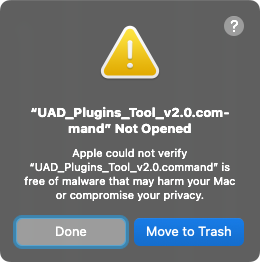
If you wish to run it by double clicking it, you can remove the quarantine as well as give it the necessary permissions.
1. Copy the command below inside the "quotes" (including the space at the end of 'prep'):
"function prep() {
for file in "$@"; do
sudo xattr -d com.apple.quarantine "$file"
sudo chmod +x "$file"
done
}
prep "
2. Paste the command into terminal and drag and drop the .command file onto the Terminal window, then press Enter.
Example:
function prep() {
for file in "$@"; do
sudo xattr -d com.apple.quarantine "$file"
sudo chmod +x "$file"
done
}
prep /Users/YOURUSERNAME/Downloads/UAD_Plugins_Tool_v2.3.command
3. Type your password and hit Enter again (password will be invisible).
4. The command file should now open as usual when double clicking it.
📝
Editing Instructions
1. To edit the script, right click on the command file and choose Open With > TextEdit
2. Under where it says "# List of plugin names", you'll see the list of plugin titles.
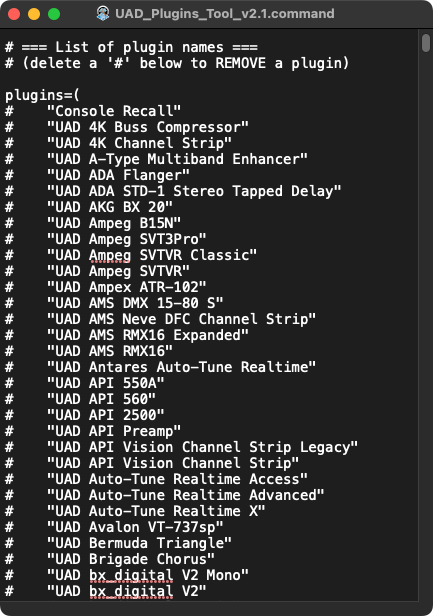
By default they're commented out by the "#" symbol.
Simply delete the "#" symbol for the titles you wish to remove.
To prevent a plugin title from being removed at any time in the future, simply add back the "#".
3. Save changes and close TextEdit.
▶️
Running Instructions
1. Remove any previous "UAD_Backup" folder on your desktop.
2. Double click the command file. It will then open Terminal and display the Main Menu. Choose option 1 for cleanup (or another option) and press Enter. Upon running the cleanup function, a confirmation will appear before running the script.
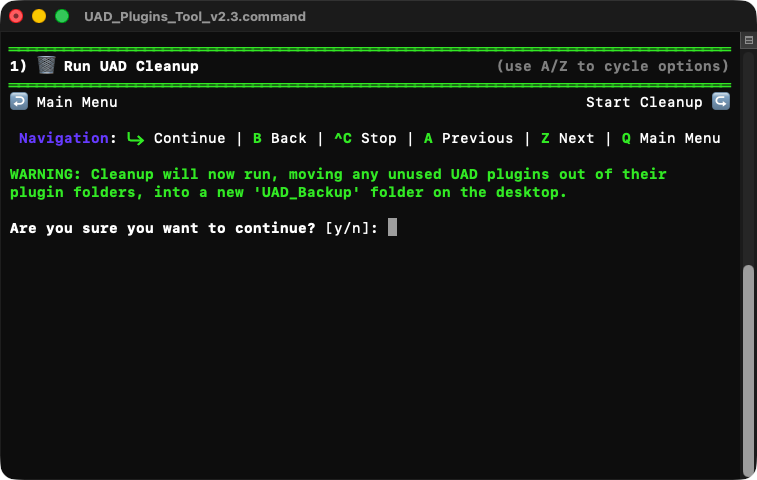
3. Press y and then enter.
It will now be running and automatically removing all unused plugins.
Once finished, it will display "✅ Done" along with a summary of the files removed.
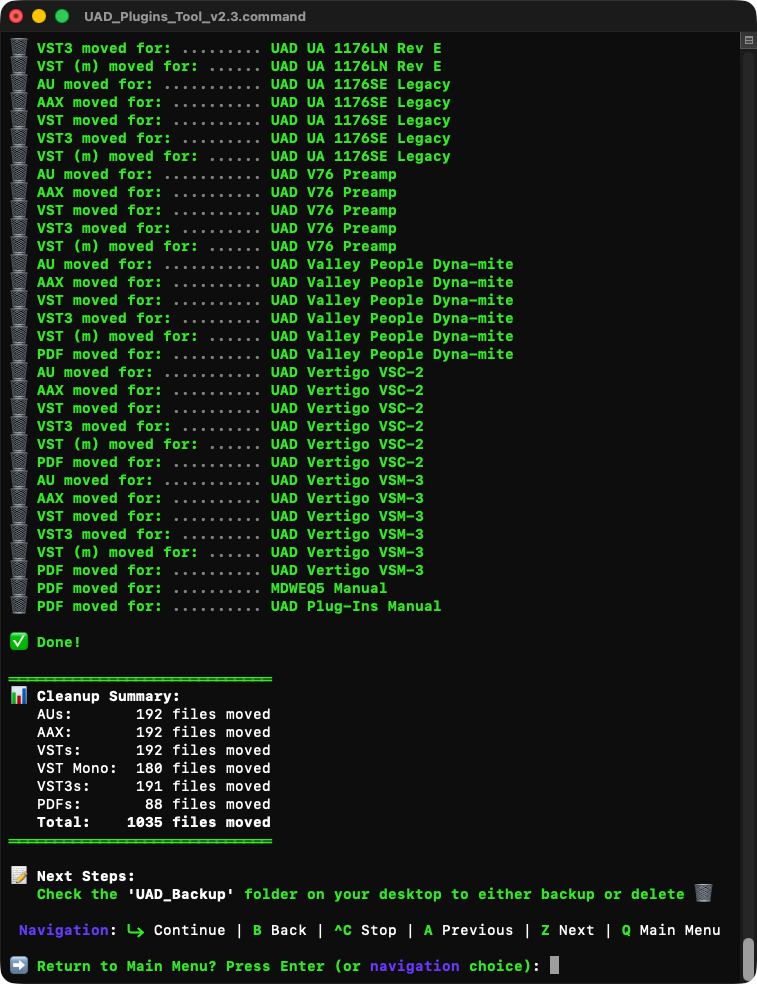
4. Simply find the "UAD_Backup" folder on your desktop and either backup the plugins or delete them.
(If you run into a permissions issue, use the 'Check/Fix Permissions' menu option to fix them)
🔄
Updating UAD Plugins Tool
1. Run the NEW UAD_Plugins_Tool_v2.3.command file.
2. Choose option 4. '↪️ Import Preferences'.
3. Drag your OLD UAD_Plugins_Tool**.command file onto the terminal window and press Enter.
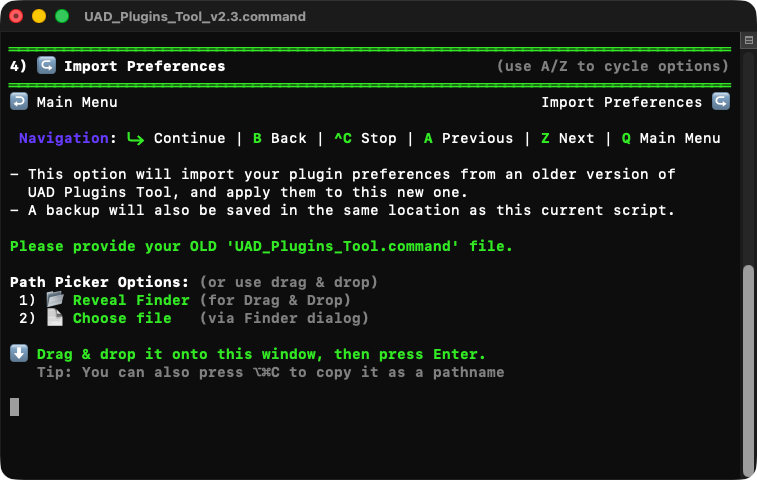
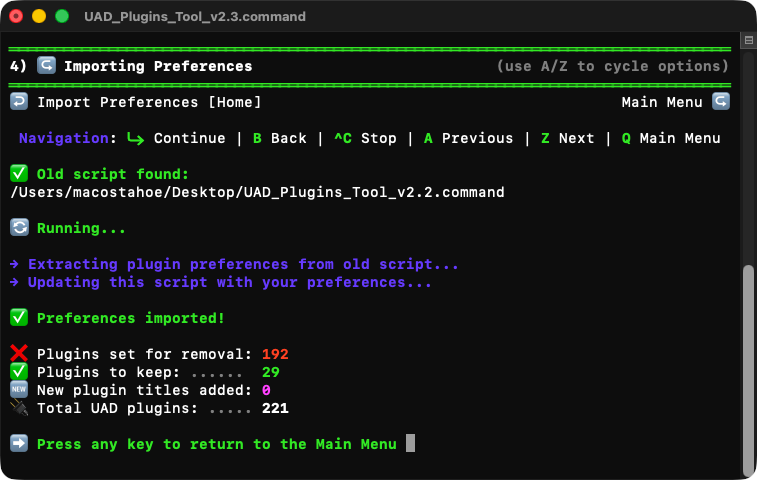
Done! Hit enter and continue using the script.
🔌
Backing Up Plugins
Backing up plugins is recommended in case you ever need to open an old session that uses one, or if you wish to try out or buy a new plugin.
💡 For example, you would move your backed-up plugins, back to these system directories:
BackupDrive/Unused_Plugins/Components/UAD *.component --> '/Library/Audio/Plug-Ins/Components'
BackupDrive/Unused_Plugins/AAX/Universal Audio/UAD *.aaxplugin --> '/Library/Application Support/Avid/Audio/Plug-Ins/Universal Audio'
BackupDrive/Unused_Plugins/VST/Universal Audio/UAD *.vst --> '/Library/Audio/Plug-Ins/VST/Universal Audio'
(VSTs can be placed in any of the sub-category folders, or outside of them)
BackupDrive/Unused_Plugins/VST3/Universal Audio/UAD *.vst3 --> '/Library/Audio/Plug-Ins/VST3/Universal Audio'
(VST3 can be placed in any of the sub-category folders, or outside of them)
📚
UAD Resources
Latest UAD Software v11.8.3 (Direct Download):
https://builds.uaudio.com/apps/uad2/UAD_11_8_3_321.pkg
Previous UAD Software versions:
Release Notes:
https://help.uaudio.com/hc/en-us/articles/215270403-UAD-Version-History-Release-Notes
If you purchase new plugins that you wish to keep installed, don't forget to add back the "#" before the plugin name to prevent it from being moved out of your plugin folders.
If you find this useful, please consider supporting by donating below 🙏🏼 I’d truly appreciate it.
Enjoy!
Say goodbye to average vocals




Questions or want to request a demo ?
Sign up to our newsletter
Join our community and get the latest tips, deals and product updates straight to your inbox. 🔒 We will never send spam or share your information